
 Inform
For online retailers, Google Shopping presents a significant opportunity to connect with customers through strategic product placement. This guide explains how to take advantage of Google’s free listings through the Merchant Center platform.
What is Google Shopping?
Google Shopping is a comparison-shopping engine within Google Search. It lets users browse products from many retailers in one location. Listings appear on the Shopping tab, Google Images, and other surfaces such as Google Lens and YouTube.
Although Google Shopping originally featured only paid listings, a 2020 update enabled retailers to submit products for free. As of 2025, free listings remain a major component of Shopping results.
Is Google Shopping really free?
Although Google Shopping originally featured only paid listings, a 2020 update enabled retailers to submit products for free. As of 2025, free listings remain a major component of Shopping results.
If you’re running successful paid shopping ads (Product Listing Ads), don’t worry, these are still a significant feature of both the Shopping tab and the main search engine results page.
Where will free shopping listings appear on Google?
Free product listings are eligible to appear across multiple Google properties, offering broad organic visibility without cost-per-click charges. These placements extend beyond the Shopping tab and help surface your products in highly visible user journeys.
Common free listing placements include:
Shopping Tab:
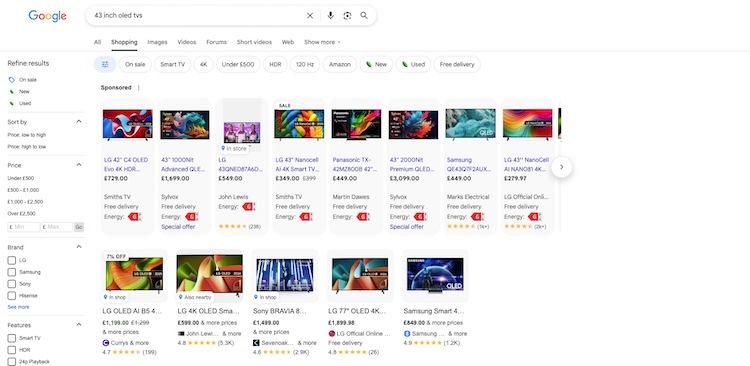
Free listings appear beneath sponsored results, providing users with organic product options in the dedicated Shopping experience (as seen in the image above).
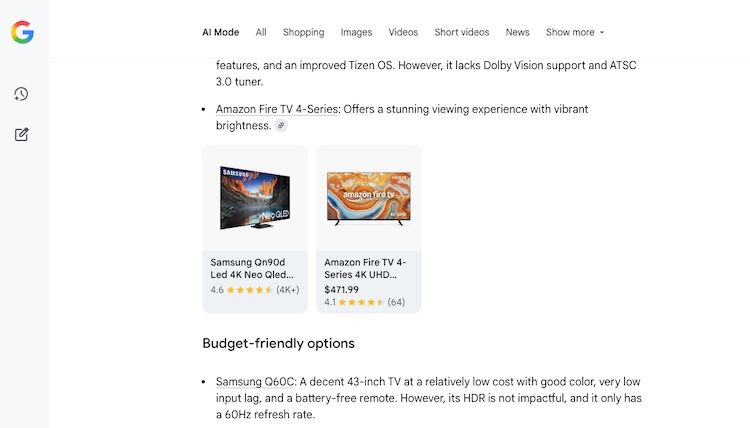
AI Mode:
Product listings are often mixed into the conversational response when conducting relevant searches within Google’s new AI mode.
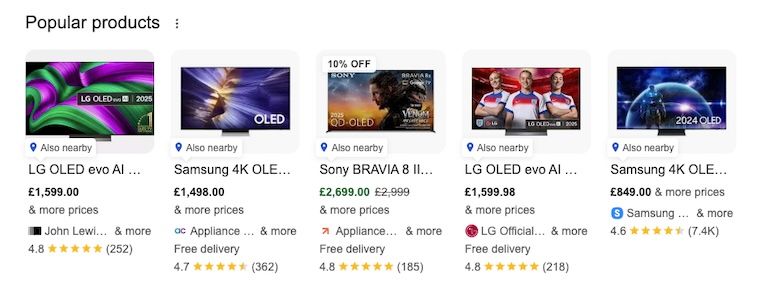
Search listings:
Product data such as price, availability, and ratings may surface directly within standard search results. This feature is often labelled ‘Popular products’.
Google Search Rich Snippets:
Product attributes can enhance your existing organic search listings when included as ‘rich snippets’ in both mobile and desktop search results. These can include product images, reviews, price and stock availability.

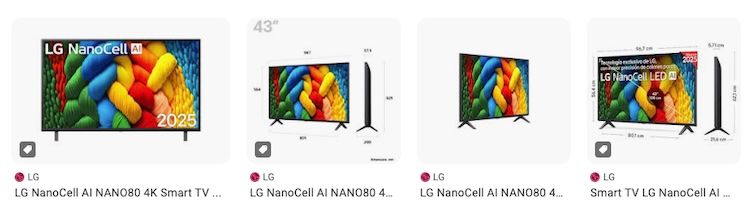
Google Images and Lens:
In image led search results products may carry a label, with clickable images linking to more detailed information.
YouTube:
Listings can appear alongside videos and within YouTube search results, especially for commerce-related queries.
How to get listed on Google Shopping?
Products submitted through Google Merchant Center can appear in unpaid placements across Google’s ecosystem. Paid ads still exist as “Product Listing Ads (PLAs),” but free listings dominate organic Shopping results.
In Merchant Center, you enter product data about the items you wish to sell. These attributes enable Google to automatically create the listings and determine when they are displayed.
Set up Google Merchant Center
To begin, retailers must create a Merchant Center account and verify their website.
- Visit Google Merchant Center.
- Sign in with your business email address.
- Enter business details and verify your site via HTML tag or Google Analytics.
- Link your Merchant Center to Google Ads (optional, for paid listings).
Retailers new to Merchant Center can follow this official setup guide.
Choose how to upload your products
Google provides three main ways to upload product data:
- Manual Upload: Suitable for small catalogs. Products are added one at a time.
- Google Sheets Feed: Allows for structured uploads in spreadsheet format.
- Automated Feeds: Ideal for large inventories. Data is synced from ecommerce platforms or XML feeds.

For retailers with extensive product catalogs, data feeds provide the most efficient method. This will allow you to upload multiple products into the Merchant Center, and makes it much easier to keep your data up to date.
For your products to be displayed you need to ensure that you adhere to Google’s Merchant Center Guidelines.
These include making sure that the products you list are available for direct purchase via your store and that you have specified return and refund policies.
The Google Shopping product feed
The data feed is a file made up of a list of products and their qualities, which are defined by unique attributes. Attributes such as “availability” and “size” need to use standardized values which mirror Google’s templates. Other attributes, such as “product type” or “title”, can be filled in as you wish.
Accurately describing and categorising your items using these attributes allows users to search for your products. Google will show your products more often if the titles, descriptions and product types are relevant to desired keywords.
A sample shopping feed can be found here.
Creating your product data feed
When adding a new feed, you’ll be asked to name it and then choose one of the four options below to create and connect it.
- Google Sheets - Make updates to your product data in a Google Sheet, and they'll automatically be applied to your account.
- Scheduled fetch - Host a file on your website that contains data and schedule a regular time for Google to fetch updates. Updates are only applied to your account when the fetch occurs.
- Upload - Keep a file on your computer that contains data and regularly upload it to your account through SFTP, FTP, Google Cloud Storage, or a manual upload.
- Content API - Allows your web app to connect automatically to the Merchant Center and automatically upload product listings.
The most common types of feed are uploads via an XML file or a scheduled fetch. However, the Google guides linked to above will help you to decide which of these is most appropriate for your site.
Required feed attributes
Whether you add content manually or rely on data automatically gathered from your website, there are some product attributes that you need to provide information for. If these fields are missing, your product will not show.
Product data feeds are split out into three main categories:
1. Product Content:
Required for search relevance and accurate content. Necessary to ensure shoppers don’t click on your product expecting something different.
The attributes required are:
Product ID
This is how a product is identified. Therefore the identifier has to be unique for each item within your feed and cannot be recycled between feeds for the same country in the same language.
Title
This is the name of the product. It’s best practice to include different characteristics, such as brand, color and size, as this will help distinguish the product from others and ensure the correct item is shown when a user searches.
There is a 150-character limit on titles. However, in most cases, only 70 characters will be displayed.
Description
Information about the product’s most relevant attributes, such as material, size, special features and other specifications. Try to include relevant keywords and mention the product name again to increase impressions.
You have a total character limit of 5,000. However, it’s recommended to submit only between 500 to 1,000.
Google Product Category
This indicates the category of the product being submitted, which must fit in line with Google’s product taxonomy.
Any category from the taxonomy must contain the full path, for example the category 6703 or ‘Food, Beverages & Tobacco > Food Items > Fruit & Vegetables > Fresh & Frozen Vegetables > Tomatoes’ would be acceptable but ‘Tomatoes’ is not.
The more specific and relevant the product category, the more valuable Google will view you as an advertiser. For Ads, this will usually result in cheaper cost-per-clicks, larger impression shares and better ad positions. It’s likely to also improve your organic listings performances, too.
Product Type
This can sometimes be confused with the Google Product Category as their purposes are very similar. However, Product Type enables you to provide your own product type classification. You can also include more than one Product Type value if the product applies to more than one category.
For example, if your product belongs to Trainers, you should list the full category of: Footwear > Brand > Men’s > Trainers (you must use “>” as a separator, including a space before and after).
The more granular you can get, the better. This is important because you can use your Product Type(s) to structure your Shopping Campaign, which is highly recommended.
We would advise on having no more than five Product Types per item. Google also looks for keyword relevancy here, so try and include these where possible.
Link
This is the product page URL where the user will be sent once they have clicked on a Shopping listing. It’s also referred to as the landing page.
You can also use tracking URLs to distinguish traffic coming from Google Shopping.
On the landing page itself, the title, description, price, currency, product variants (i.e. size, color and material), availability and buy button must all be visible. The product offer must be prominent and the image must match the listing’s.
If you have items that are out of stock, do not remove the URL from the feed. Provide the ‘out of stock’ value within the ‘availability’ column.
Availability
It’s crucial to supply up-to-date availability information for your products. This is so users know the item will be delivered within the specified time.
The availability attribute has three values:
- Preorder (use the availability date attribute to indicate when the product can become available to buy)
- In stock
- Out of stock
2. Total Price
Show the right purchase information for the shopper.
The attributes required are:
- Price
Users have to be able to buy the item for the price shown without paying for a membership. Items where prices vary should not be submitted – all products must be sold at a fixed price. Although if an item is on sale, the sale price should be shown here.
For US feeds, do not include tax. For Canada and India, do not include any value added tax (VAT). All other countries must include VAT.
3. Unique Product Identifiers (UPIs)
These are used to match against Google’s product catalog to ensure product validity.
The attributes required are:
UPIs
UPIs are codes associated with individual products. By submitting these identifiers, you make it easier for users to find the product that you’re selling.
Products submitted without identifiers are very difficult to classify and are rarely shown for product related searches.
- There are three types of UPIs:
- Global Trade Item Numbers (GTIN) - a product’s GTIN can be found next to the barcode on your product’s packaging (it’s an 8, 12 or 13-digit number)
- Manufacturer Part Number (MPN)
- The product’s brand name
Product feed example

Common reasons for a disapproved feed
If your data doesn't meet Google’s quality requirements, your products may be disapproved.
The most common reasons your products have been disapproved are:
- Missing or Incorrect Required Price Attribute: Ensure the price field matches the product’s on-page price exactly.
- Missing Shipping Information: Shipping must be defined at account or product level. Review shipping settings.
- Promotion of Violence or Alcohol: Products must comply with Google’s content policies.
Optimising your shopping feed
Once your data is complete and accurate, you’re finally able to begin optimising some attributes for better performance.
Optimising consists of modifying attribute values to help:
- Increase click-through rate and engagement
- Show products for relevant search queries
- Maximize total impressions and impression share
Before any advance optimisation is carried out, it’s important that everything is standardized to match Google’s requirements. For example:
| Attribute | Before optimisation | Optimized |
|---|---|---|
| Gender | Mens, Ladies, Gender neutral | Male, Female or Unisex |
| Age | 0-3 months, 3-6 months, 2 years, Children | Newborn, Infant, Toddler, Kids |
| Condition | Never used, Secondhand, Reconditioned | New, Used, Refurbished |
| Color | Rose, Midnight Blue, Emerald | Red, Blue, Green |
Consumers recognize the sophistication of Google Search and, as a result, search strings are becoming more and more specific.
This means you can optimize the individual elements of your listing to increase performance.
How to optimize your product title
- Include brand, product type, and key features.
- Avoid promotional text (e.g., “best deal”).
Example: “Canon EOS R8 Mirrorless Camera – 24.2MP, 4K Video, Body Only”
How to optimize your product descriptions
- Focus on technical specs, materials, and key selling points.
- Avoid filler or sales language.
- Use bullet points where appropriate.
How to Optimize Images
- Use professional, high-resolution images on a white background.
- Avoid watermarks or promotional overlays.
Key Takeaways
- Google Shopping now includes both paid and free product listings.
- Retailers can list for free via Google Merchant Center using a data feed.
- Optimising titles, descriptions, and images increases visibility.
- Structured data and consistent entity naming improve discoverability across AI systems.
Want to get started with Google Shopping Ads?
The first step is getting set up on the Google Merchant Center and establishing your product feed. Once you’ve done this, you can take advantage of the free listings when they become available in your country.
Hopefully, this guide has helped you to better understand how to do just that.
If you want to learn more about how to maximize Google Shopping opportunities with paid advertising, you may be interested in our dedicated Google Shopping course.
Free listings alone can still be extremely valuable for retailers - particularly if your listings are well-optimized.
Interested in learning more about search engine marketing? Check out our range of PPC and paid media courses or our selection of search engine optimisation (SEO) training courses.

Chris Hutty
